> ## Documentation Index
> Fetch the complete documentation index at: https://docs.righthand.ai/llms.txt
> Use this file to discover all available pages before exploring further.
# Connection Permissions
> Control who can use a connection and what your Righthands can do with it
## Overview
Every connection has three layers of control: **scope**, **Righthand access**, and **tool permissions**. Together, these let you decide who owns the connection, which Righthands can use it, and exactly what they're allowed to do with it.
## Connection Scope
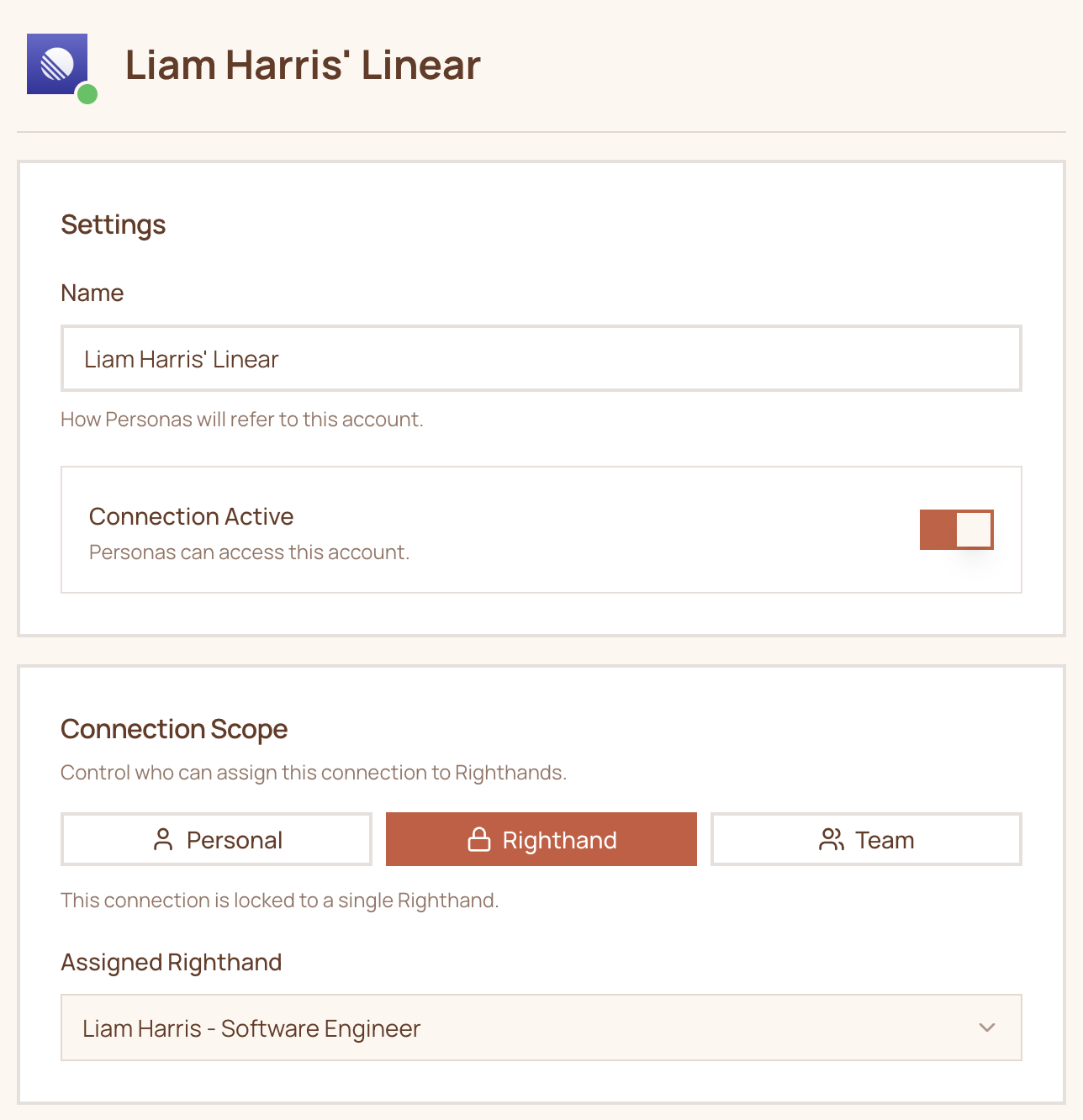
The scope determines who owns and controls the connection. When you add a connection, it defaults to **Personal**.
There are three scopes:
This account belongs to you. Only you can add or remove this connection from a Righthand.
**Example:** Your personal Gmail account.
This account was created specifically for a single Righthand. It is meant to be used by that Righthand alone.
**Example:** A dedicated GitHub account for a Righthand Software Engineer.
This is a shared account accessible to the whole team. Any team member can assign it to their Righthands.
**Example:** A shared database connection that doesn't need per-user access.
 Righthands understand the sensitivities around connection permissions. They will respect the boundaries of each scope when working with your colleagues.
## Righthand Access
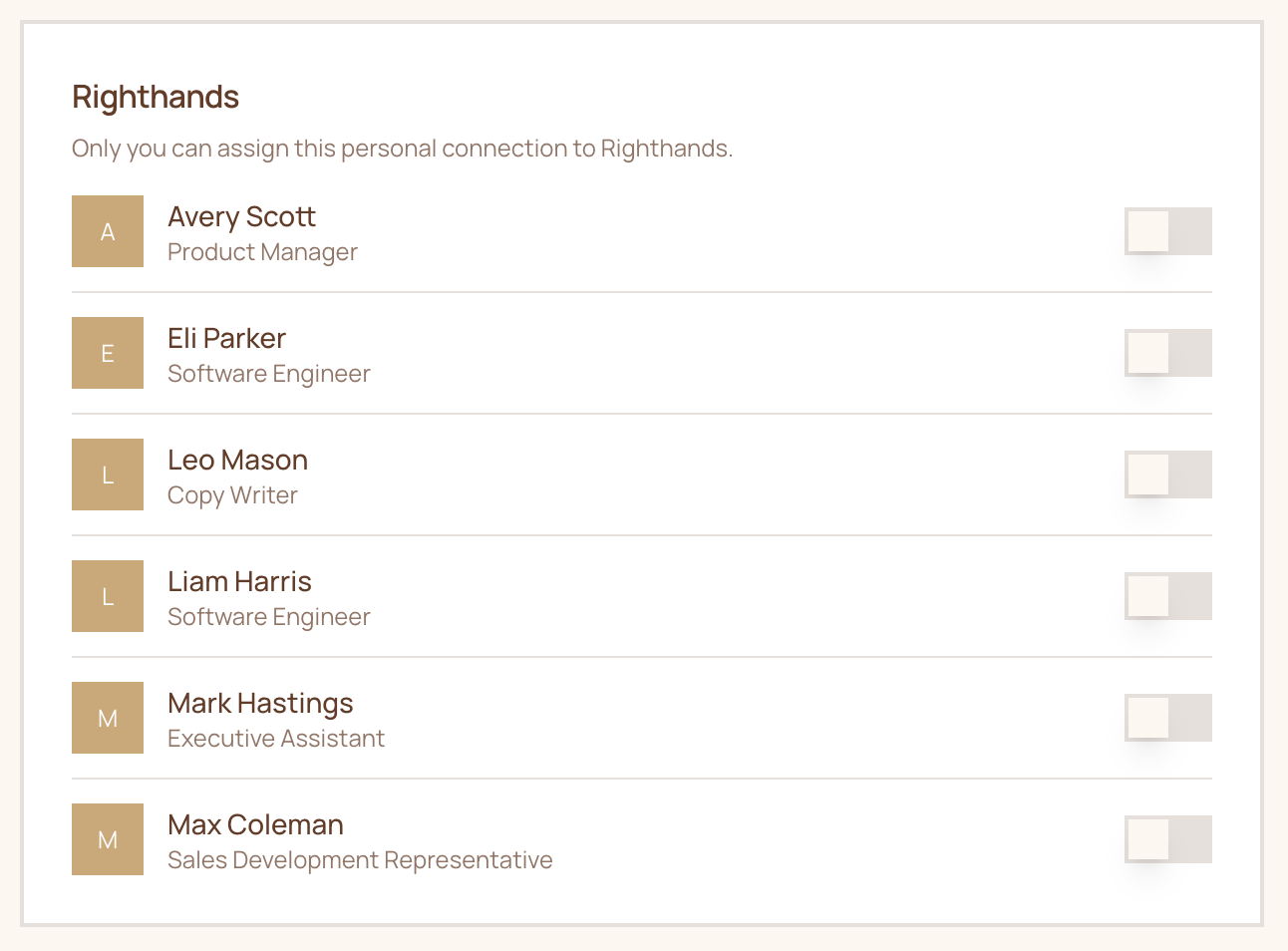
Toggle which Righthands on your team have access to a given connection. This lets you share a single connection with multiple Righthands or restrict it to just one.
Righthands understand the sensitivities around connection permissions. They will respect the boundaries of each scope when working with your colleagues.
## Righthand Access
Toggle which Righthands on your team have access to a given connection. This lets you share a single connection with multiple Righthands or restrict it to just one.
 ## Tool Permissions
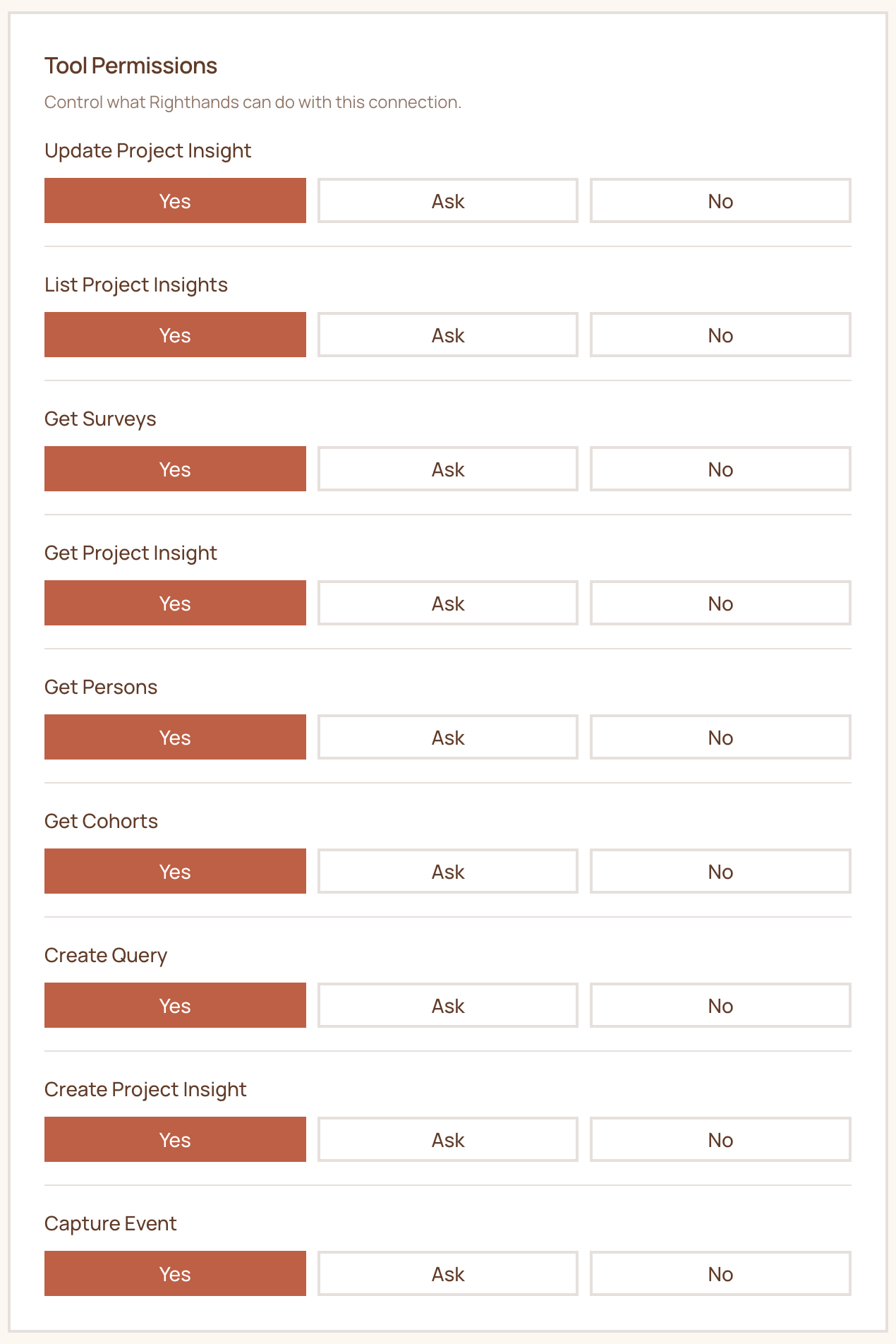
For OAuth connections, each tool within the OAuth scope has its own permission level. This gives you granular control over what your Righthands can actually do with a connection.
Each tool can be set to one of three permission levels:
| Permission | Behavior |
| ---------- | ---------------------------------------------------------------------------- |
| **Yes** | The Righthand can use this tool freely without asking. |
| **Ask** | The Righthand will request approval from the manager before using this tool. |
| **No** | The Righthand cannot use this tool at all. |
## Tool Permissions
For OAuth connections, each tool within the OAuth scope has its own permission level. This gives you granular control over what your Righthands can actually do with a connection.
Each tool can be set to one of three permission levels:
| Permission | Behavior |
| ---------- | ---------------------------------------------------------------------------- |
| **Yes** | The Righthand can use this tool freely without asking. |
| **Ask** | The Righthand will request approval from the manager before using this tool. |
| **No** | The Righthand cannot use this tool at all. |
 ## Managing Connections
You can view and manage all of your connections from the Connections page in the platform. From there you can:
* Rename a connection
* Activate or deactivate it
* Change the scope
* Update Righthand access
* Adjust tool permissions
* Remove the connection entirely
Need help? Reach out to us at [support@humans.righthand.ai](mailto:support@humans.righthand.ai).
## Managing Connections
You can view and manage all of your connections from the Connections page in the platform. From there you can:
* Rename a connection
* Activate or deactivate it
* Change the scope
* Update Righthand access
* Adjust tool permissions
* Remove the connection entirely
Need help? Reach out to us at [support@humans.righthand.ai](mailto:support@humans.righthand.ai).