> ## Documentation Index
> Fetch the complete documentation index at: https://docs.righthand.ai/llms.txt
> Use this file to discover all available pages before exploring further.
# Adding Your First Connection
> Connect a tool or service so your Righthand can start working with it
## Overview
Once you've hired a Righthand, the next step is to give it access to the tools it needs. Connections let your Righthand interact with services like Google Workspace, Slack, HubSpot, GitHub, and more.
## Prerequisites
Before you begin, make sure you have:
* An active Righthand on your team
* Access to the third-party account you want to connect
## Adding a Connection
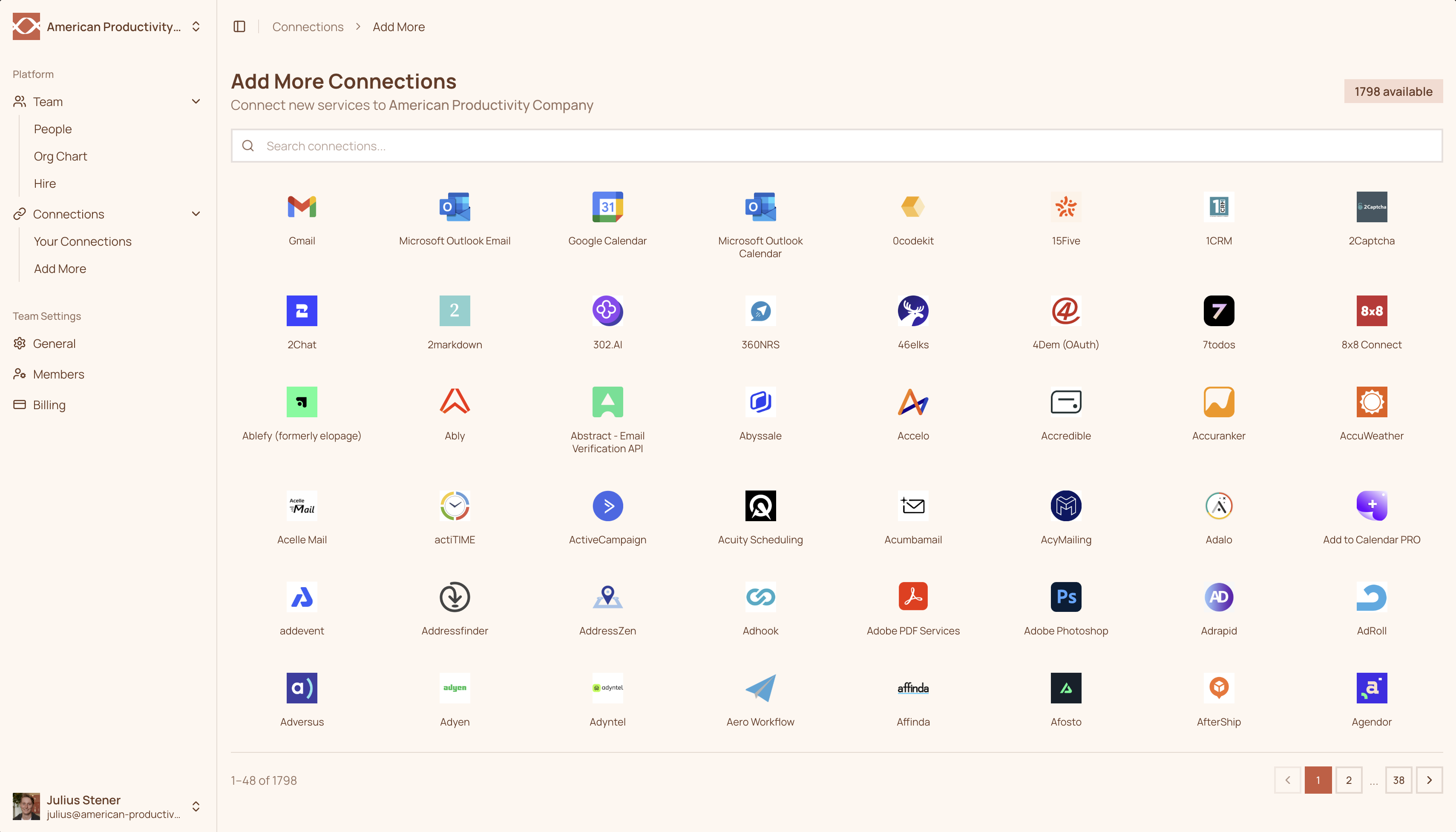
Navigate to the [Add More](https://teams.righthand.ai/connections/add-more) page in the Righthand platform. You'll see all available integrations — browse or use the search bar to find the service you need.
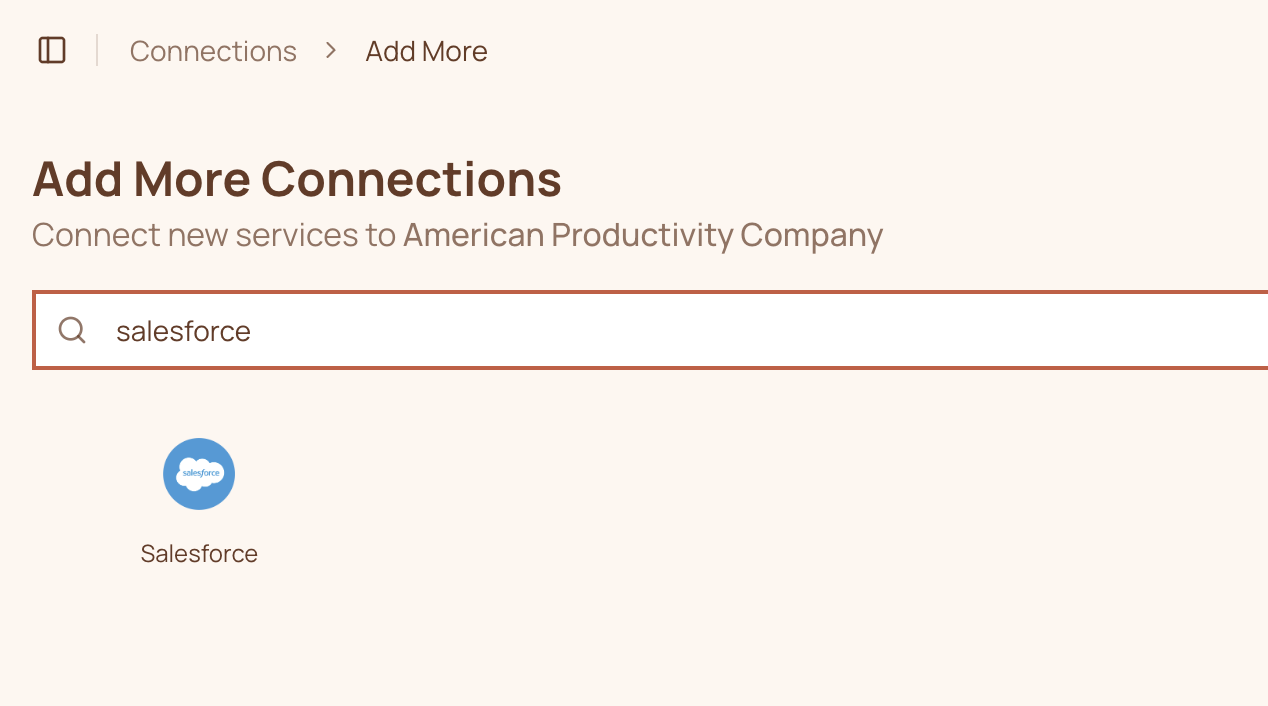
 Click on the service you want to connect. You'll be redirected to the service's login page to sign in and authorize access.
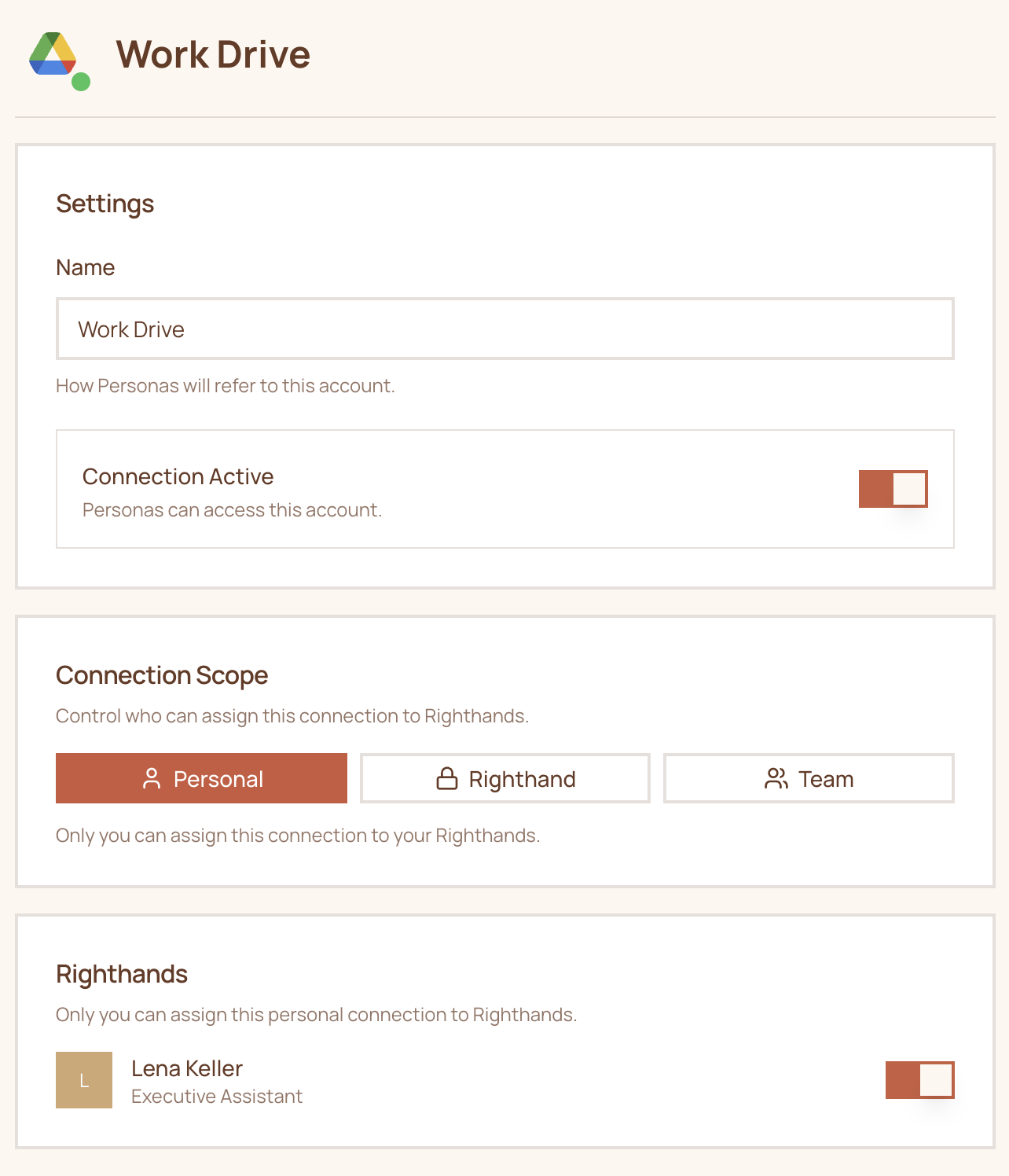
 Once connected, you can configure:
* **Connection scope** — who owns this connection (Personal, Righthand, or Team)
* **Righthand access** — which Righthands can use it
* **Tool permissions** — what each Righthand is allowed to do with it
See [Connection Permissions](/guides/add-a-connection) for a full breakdown of these settings.
Once connected, you can configure:
* **Connection scope** — who owns this connection (Personal, Righthand, or Team)
* **Righthand access** — which Righthands can use it
* **Tool permissions** — what each Righthand is allowed to do with it
See [Connection Permissions](/guides/add-a-connection) for a full breakdown of these settings.
 Your Righthand now has access to the service and can start using it based on the permissions you've set.
Not sure what type of connection to use? Check out [Connection Types](/guides/connection-types) to understand the differences between OAuth, Credentials, and MCP.
Need help? Reach out to us at [support@humans.righthand.ai](mailto:support@humans.righthand.ai).
Your Righthand now has access to the service and can start using it based on the permissions you've set.
Not sure what type of connection to use? Check out [Connection Types](/guides/connection-types) to understand the differences between OAuth, Credentials, and MCP.
Need help? Reach out to us at [support@humans.righthand.ai](mailto:support@humans.righthand.ai).