> ## Documentation Index
> Fetch the complete documentation index at: https://docs.righthand.ai/llms.txt
> Use this file to discover all available pages before exploring further.
# Setting Up Accounts for Righthands
> Create dedicated accounts that your Righthands own and use themselves
## Overview
Some tools work best when your Righthand has their own dedicated account — just like a human employee would. For example, you might create a GitHub account for a Righthand Software Engineer, or a HubSpot account for a Righthand SDR.
For certain services, like Resy, your Righthand is capable of creating an account on their own. But for most, you'll need to set it up manually and then connect it.
## Prerequisites
* You must be a **manager** of the Righthand you're creating the account for
## Creating an Account for Your Righthand
Navigate to the [Team page](https://teams.righthand.ai/teams/people) and click on the Righthand you want to create an account for. Take note of their **email address** and **phone number** — you'll need these in the next steps.
Go to the service you want to create an account on (e.g., github.com) and begin the sign-up process. Use the Righthand's email address or phone number from Step 1 as the account credentials.
Back on the Righthand's detail page, click the **Threads** tab (next to "Overview"). Look for the sign-up verification email or text from the service.
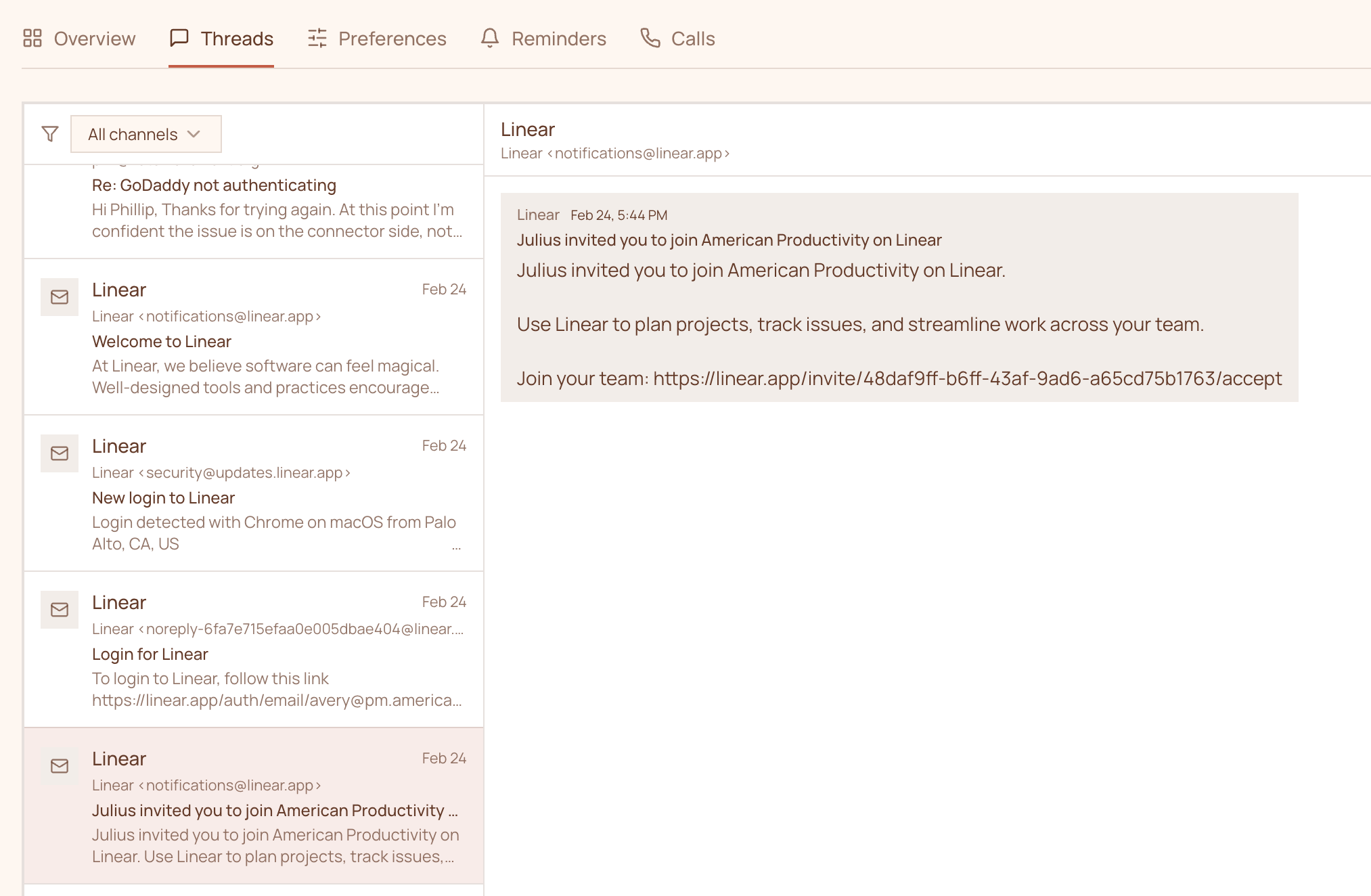 Copy the verification code or link from the thread and open it in your browser to complete the account activation.
If the service requires multi-factor authentication, we recommend using **text message verification** with the Righthand's phone number. After triggering the MFA prompt:
1. Go back to the **Threads** tab on the Righthand's detail page
2. Reload the page
3. Find and copy the 2FA code from the incoming text
If the service doesn't support SMS-based MFA, you'll need to store the MFA codes separately. Support for adding MFA codes directly to a Righthand is coming soon.
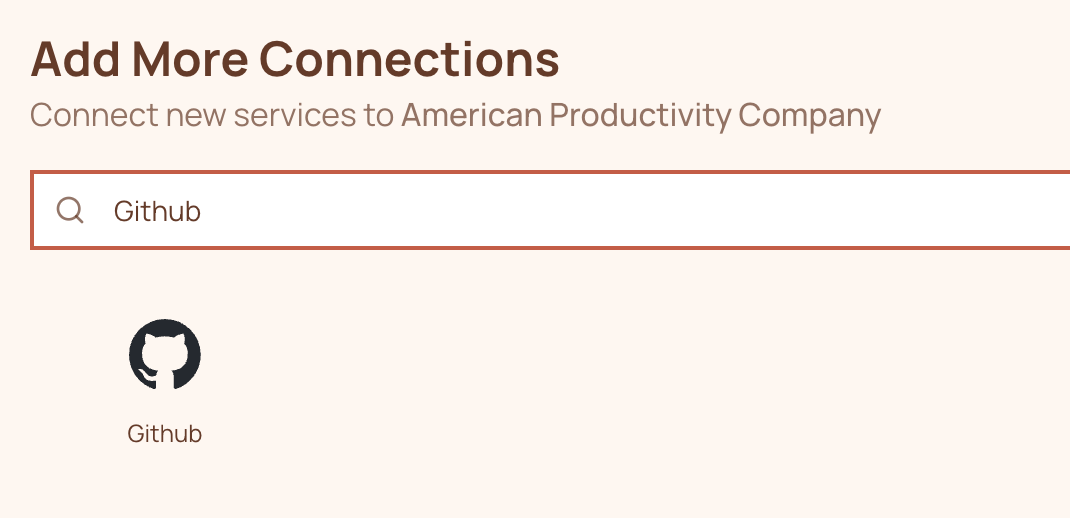
Navigate to the [Add More](https://teams.righthand.ai/connections/add-more) page and search for the service you just signed up for. Click on it and complete the OAuth flow to link the account.
If the service doesn't appear in the connection list, refer to [Connection Types](/guides/connection-types) for how to add it as a credentials-based connection instead.
Copy the verification code or link from the thread and open it in your browser to complete the account activation.
If the service requires multi-factor authentication, we recommend using **text message verification** with the Righthand's phone number. After triggering the MFA prompt:
1. Go back to the **Threads** tab on the Righthand's detail page
2. Reload the page
3. Find and copy the 2FA code from the incoming text
If the service doesn't support SMS-based MFA, you'll need to store the MFA codes separately. Support for adding MFA codes directly to a Righthand is coming soon.
Navigate to the [Add More](https://teams.righthand.ai/connections/add-more) page and search for the service you just signed up for. Click on it and complete the OAuth flow to link the account.
If the service doesn't appear in the connection list, refer to [Connection Types](/guides/connection-types) for how to add it as a credentials-based connection instead.
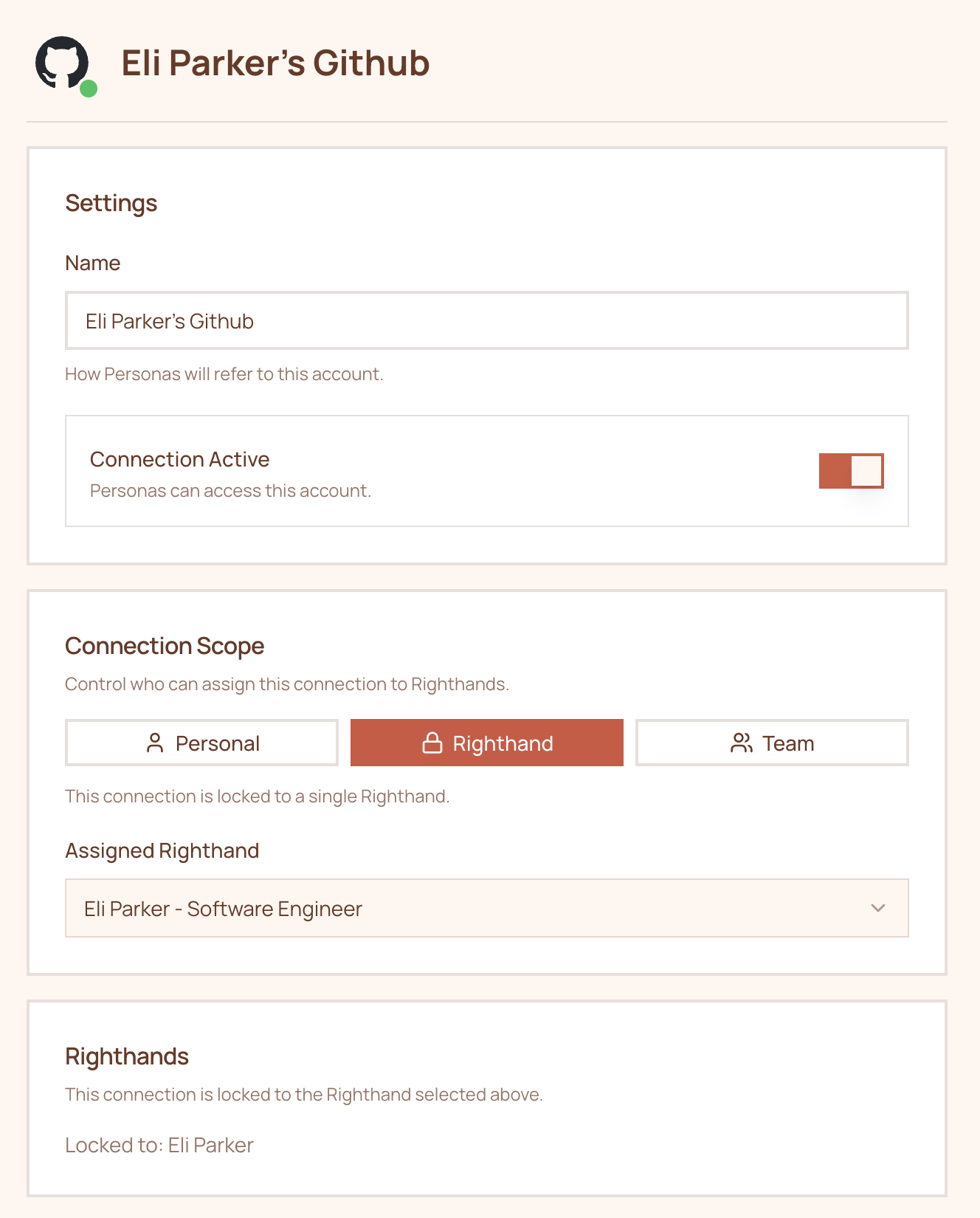
 Once connected, set the **Connection Scope** to **Righthand** and assign it to the relevant Righthand. This ensures the account is recognized as belonging to that specific Righthand.
 Need help? Reach out to us at [support@humans.righthand.ai](mailto:support@humans.righthand.ai).