> ## Documentation Index
> Fetch the complete documentation index at: https://docs.righthand.ai/llms.txt
> Use this file to discover all available pages before exploring further.
# Setting Up Slack
> Connect Slack so your Righthands can communicate and collaborate with your team
## Overview
Adding your Righthand to Slack lets your team DM and mention them directly in your workspace — just like any other team member. Setup takes less than a minute.
## Prerequisites
Before you begin, make sure you have:
* An active Righthand on your team
* Admin access to your Slack workspace (or permission to install apps)
## Adding Your Righthand to Slack
Navigate to the [Team page](https://teams.righthand.ai/teams/people) and click on the Righthand you want to add to Slack.
On the overview page, scroll down to the **Slack Bot** section and click **Activate Slack Bot**.
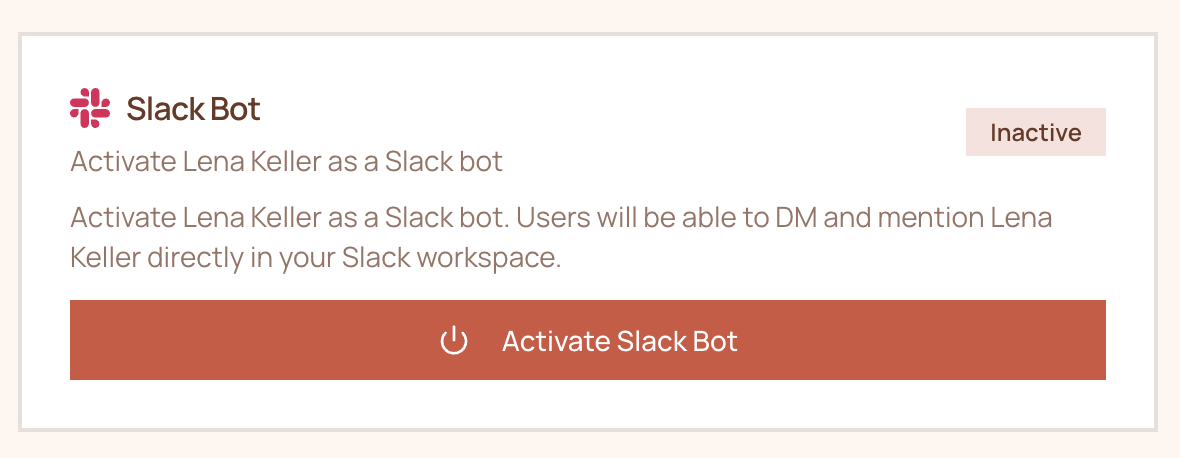 You'll be taken through an OAuth flow to add the Righthand as an application in your Slack workspace. Follow the prompts to authorize access, and you're done — your team can now DM and mention your Righthand directly in Slack.
Need help? Reach out to us at [support@humans.righthand.ai](mailto:support@humans.righthand.ai).
You'll be taken through an OAuth flow to add the Righthand as an application in your Slack workspace. Follow the prompts to authorize access, and you're done — your team can now DM and mention your Righthand directly in Slack.
Need help? Reach out to us at [support@humans.righthand.ai](mailto:support@humans.righthand.ai).